
Help Center
Find answers, guides, and tips to get the most out of ClockIn+
Watch & Learn
ClockIn+ Product Overview
A complete walkthrough of the ClockIn+ platform — from creating your organization to tracking attendance with dynamic QR codes.
Kudos & Recognition Feature
Learn how to give and receive peer recognition, earn points, and redeem rewards through the ClockIn+ engagement system.
Visual Guides
Employee
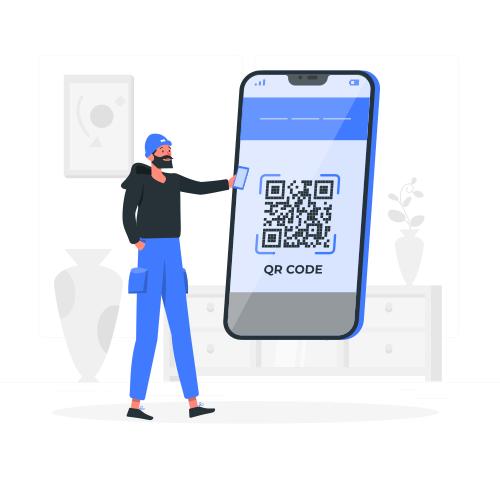
How to Scan & Check In
- Navigate to Scan QR from your dashboard or bottom nav
- Allow camera access when prompted by your browser
- Point your camera at the dynamic QR code displayed by your admin
- The scan is automatic — you'll see a confirmation when checked in
- No camera? Switch to Enter Code and type the 6-digit short code

Employee
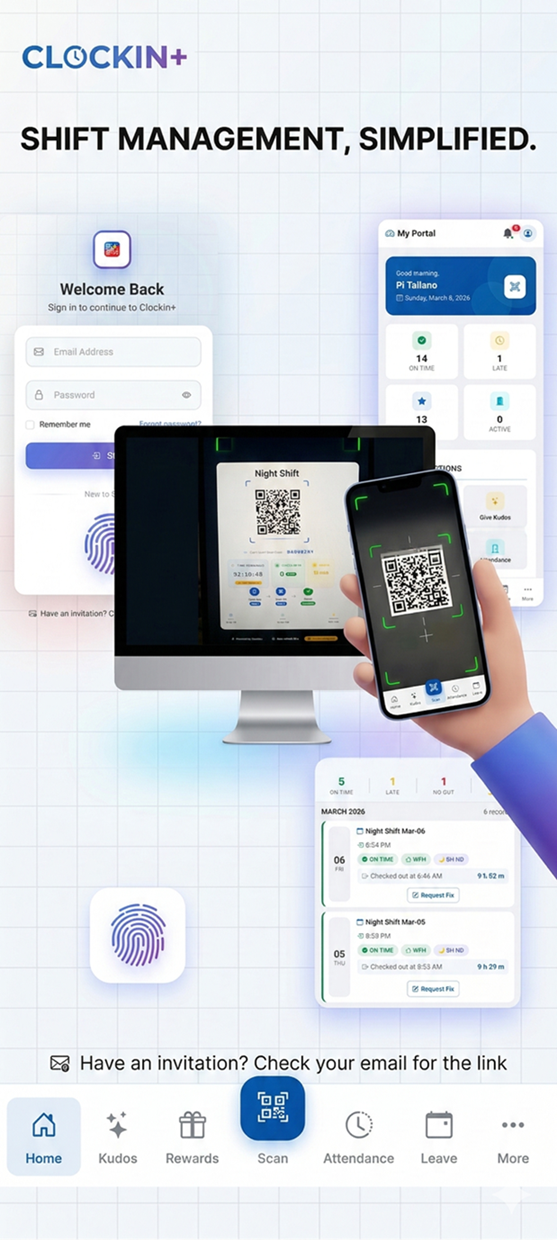
Navigating Your Dashboard
- Your Welcome Card shows your name, date, and quick scan button
- Stats Grid displays on-time count, late count, points, and active sessions
- Use Quick Actions to scan QR, give kudos, view rewards, or check sessions
- Recent Activity shows your latest check-ins with time and status
- Tap More Options for calendar, reports, notifications, and profile settings

Admin
Tracking Attendance & Reports
- Go to Admin Dashboard to see today's live attendance stats
- Create a new Attendance Session with QR code + optional location fence
- Monitor real-time check-ins as employees scan
- View Analytics for trends, on-time rates, and department breakdowns
- Export reports to CSV/Excel for payroll or HR records
Admin
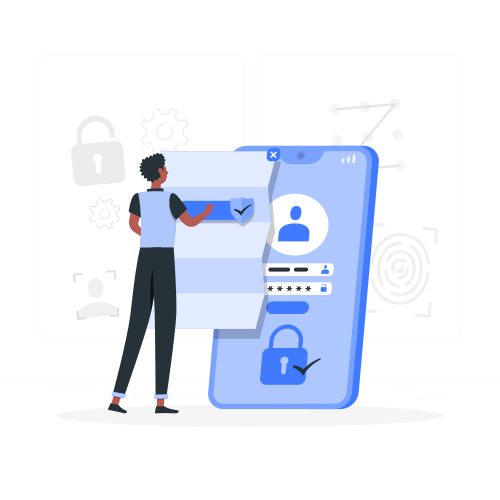
Organization Setup & Security
- Sign up and create your Organization (name, type, timezone)
- Invite employees via email, bulk import, or shareable join link
- Set up Departments and assign employees to organize your team
- Configure attendance policies — grace periods, late thresholds, overtime rules
- All data is encrypted (256-bit) and isolated per organization (multi-tenant)
Getting Started
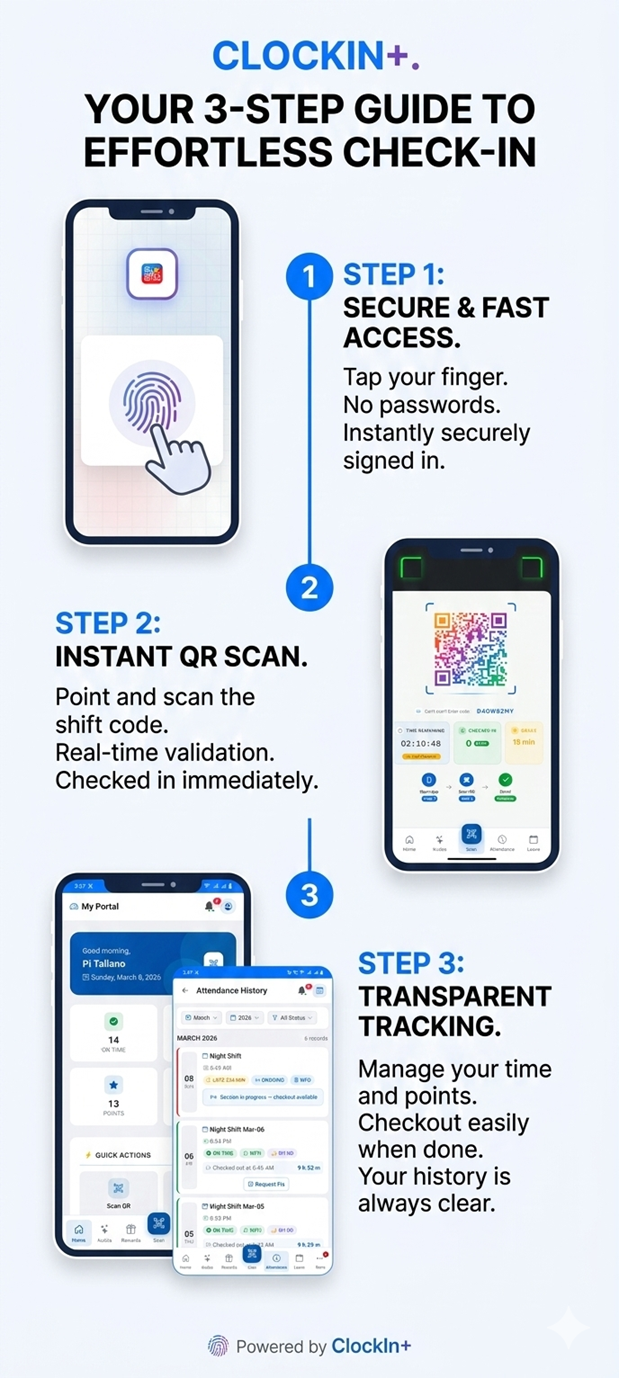
Quick Start: 3 Steps to Get Going
- Sign Up — Create your organization in under 2 minutes (no credit card needed)
- Create Session — Set up an attendance session with a dynamic QR code
- Scan & Track — Employees scan the QR code and attendance is recorded instantly
- View real-time analytics and export reports at any time
- Invite your team via email, join code, or shareable link
Admin
Managing Shifts & Attendance
- Go to Manage → Sessions to create and manage attendance sessions
- Configure shift schedules, grace periods, and late thresholds
- Enable geolocation verification to ensure on-site check-ins
- Monitor real-time attendance as employees scan QR codes
- Review shift reports and export to Excel for payroll processing